Work with repeatable stages
Goal
Test rules in a tracker program that depend on more than one form. For example, a rule that compares a value with the previous event, or a stage rule that reads an attribute from the enrollment.
Before you start
- You have a tracker program open in the playground. See Find and open a program.
- To add more than one event to a stage, the stage must be repeatable in the program metadata.
Steps
- Look at the Enrollment rail on the left of the playground. It lists:
- Enrollment form, with the number of attributes. It is selected when you open the program.
- Each program stage, in the order set in the program. A stage that is not repeatable shows "1 event".
- Each repeatable stage, with the number of events you added. It starts at "No events yet".
- To add an event to a repeatable stage, select the Add event button (the plus icon) on the stage row. A new event appears under the stage as Event 1 and opens. Select Add event again to add Event 2, and so on.
- To switch forms, select a row in the rail: Enrollment form, a stage, or an event under a repeatable stage. Selecting a repeatable stage row opens its first event. If the stage has no events yet, nothing happens.
- Enter values in any form. Then switch to another form and back. Your values are still there.
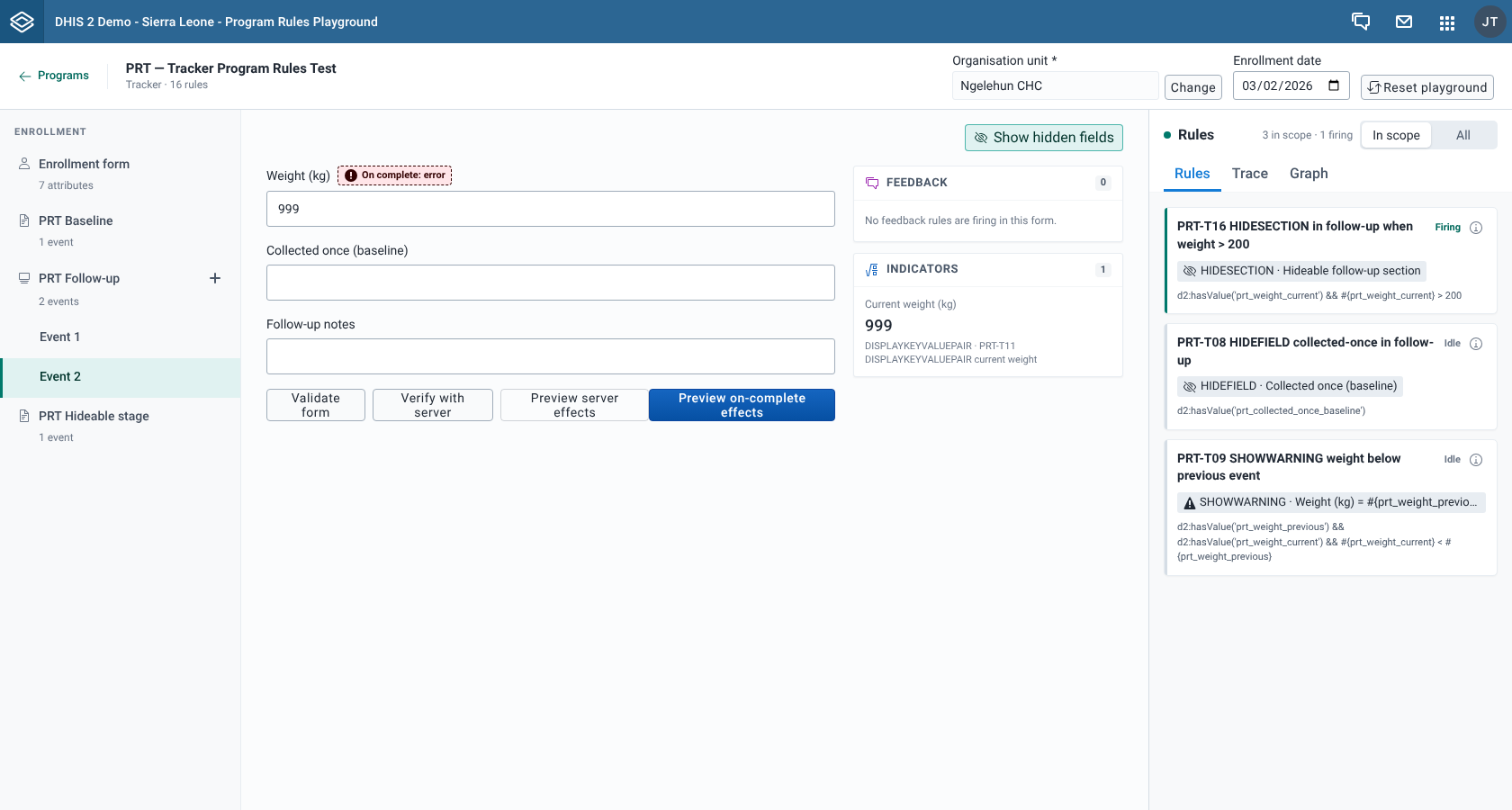
What you'll see
The selected row in the rail is highlighted. The repeatable stage row shows the number of events, for example "2 events".
Forms keep their values
Every form in the rail stays loaded while the program is open, so switching rows never loses input. Only Reset playground clears the forms. See Start over.
You can't remove an event once you add it. To start with fewer events, use Reset playground.
Values flow between forms
The rules in each form see the values from the other forms:
- Stage and event forms see the attributes you entered in the Enrollment form. A stage rule that reads
A{...}reacts as soon as you change the attribute. - Each form also sees the values in all the other events. Rules that use program rule variables of the type "previous event" or "newest event" read from them.
- The Enrollment form sees the values from all the events.
The values reach the other forms a moment after you type.
Event dates
Events you add in stage forms always have today's date. Stage forms have no date field. The Enrollment date in the context bar only sets the enrollment date.
Because all events share the same date, the order of events for "previous event" variables is not guaranteed. Events in the playground have no creation date, so the rule engine orders same-date events by the moment it builds them, which you can't control. For example, a rule that compares an event with the previous one, such as "PRT-T09 SHOWWARNING weight below previous event", may show its warning on Event 1 because it treats Event 2 as the previous event.
Each form has its own panels
Each form has its own Feedback and Indicators sidebar, its own rules panel and its own buttons. Verify with server on a stage or event form sends that event on its own, without the enrollment. See Check rules against the server.
In a stage form, the Rules tab marks rules that have no program stage as Out of scope, even when they fire in that form. Switch to All to see them. See Find out why a rule did or didn't fire.
A rule action that hides a program stage (HIDEPROGRAMSTAGE) shows up in the Rules, Trace and Graph tabs, but the stage stays in the rail.