Find out why a rule did or didn't fire
Goal
Find a rule, check whether it is firing for the values in the form, and follow the evaluations that made it fire or stop firing.
Before you start
- You have a program open in the playground. See Find and open a program.
- The rules panel is on the right of each form. It has three tabs: Rules, Trace and Graph. It opens on Rules.
Steps
Check the rule's status on the Rules tab
-
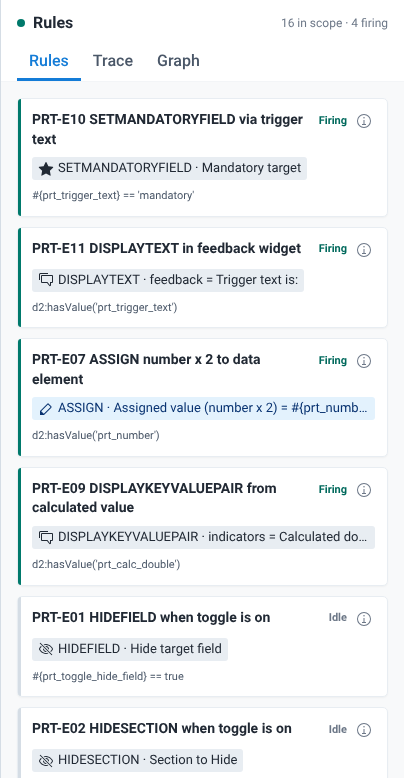
Select the Rules tab. The header shows how many rules are in scope and how many are firing, for example "16 in scope · 3 firing".
-
In a tracker program, choose which rules to list with the switch in the header:
- In scope (the default) lists only the rules that belong to the form you have open.
- All lists every rule in the program.
Event programs have no switch. All their rules are in scope.
-
Find your rule. Rules are sorted by priority, with the firing rules moved to the top. The list reorders as rules start and stop firing.
-
Read the status at the top of the card:
- Firing: the rule produced at least one effect in the latest evaluation.
- Idle: the rule is in scope, but its condition did not produce an effect in the latest evaluation.
- Out of scope: the rule belongs to another form. The card says which one, for example "Applies to enrollment" or "Applies to PRT Follow-up".
-
Compare the condition shown on the card with the values in the form. Each card shows:
- The rule name.
- One badge per action, with the action type and its target, for example "HIDEFIELD · Hide target field". When the action has data, the badge adds it after an equals sign. For display actions, the target is the location and the detail is the static text.
- The condition, as it is written in the rule.
-
To see the full rule, select the Program rule details button (the info icon) on the card. See Open and edit a rule.
Follow the evaluations on the Trace tab
- Change a value in the form.
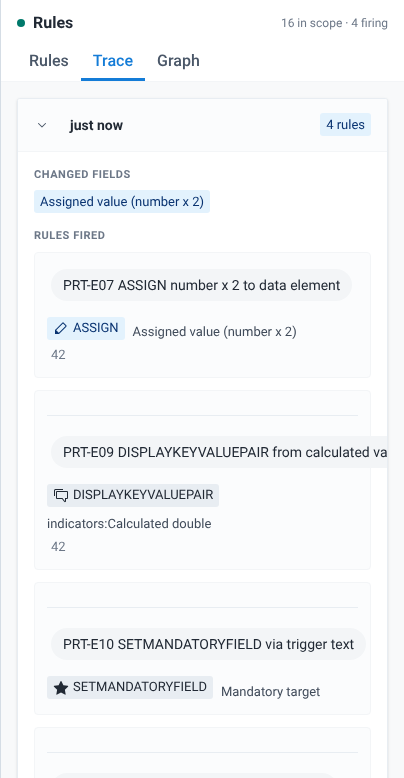
- Select the Trace tab. Each rule evaluation adds an entry at the top, even when no rule fired. The newest entry opens by itself the first time.
- Read the entry header: when the evaluation happened, for example "just now" or "2m ago", and how many rules fired. An entry with no changed field is tagged Initial. The first one is the evaluation that ran when the form loaded. In the stage and event forms of a tracker program, a change in another form also adds an Initial entry, because the form evaluates its rules again with the new values.
- Select the expand button on an entry to see its details, and select it again to collapse it. A collapsed entry shows the number of effects.
- In the expanded entry, read:
- Changed fields: the fields whose change caused this evaluation. This includes fields that a rule assigned a new value to: an ASSIGN action that changes a value causes another evaluation, and that entry lists the assigned field.
- Rules fired: each rule that fired, with its effect, the target and the data. If no rule fired, the entry says "No rules fired".
What you'll see
A rule that never shows up as Firing, and never appears in the Trace tab, did not produce an effect. Check its condition against the values you entered, and check that the program rule variables it uses read the fields you expect. The Program rule details dialog lists the variables in the condition.
A rule only appears in the Trace tab in the evaluations where it fired. Before the first evaluation is recorded, the tab shows "No rules observed yet". It keeps the latest 200 evaluations.
Selecting a card on the Rules tab, or a rule in a Trace entry, highlights that rule and opens the Graph tab. Selecting a Trace entry shows that evaluation in the graph. A banner at the top of the Trace and Graph tabs shows what is highlighted, for example "Highlighting evaluation 2m ago" or "Rule:" followed by the rule name. Select Clear to remove the highlight. See Map rule dependencies.
If the Rules tab shows "No program rules match this view.", there are no rules for the form you have open. In a tracker program, switch to All.
Out of scope rules in tracker stage forms
In a tracker program, a rule is in scope when its program stage matches the form you have open. Rules without a program stage are in scope in the Enrollment form only.
A rule without a program stage still runs in stage forms, and can fire there. On the Rules tab of a stage form it is labelled Out of scope, even when it fires, and it is not counted in the "firing" number in the header. Its effects still show on the form and in the Trace tab.