Screens and controls
This page goes through the app screen by screen. For each screenshot, the numbered list names the controls you can see, from top left to bottom right, and links to the page that explains how to use them.
The app has three screens: the program list, the playground for one program, and the About page.
Program list
The first screen when you open the app. It lists the programs you can see.
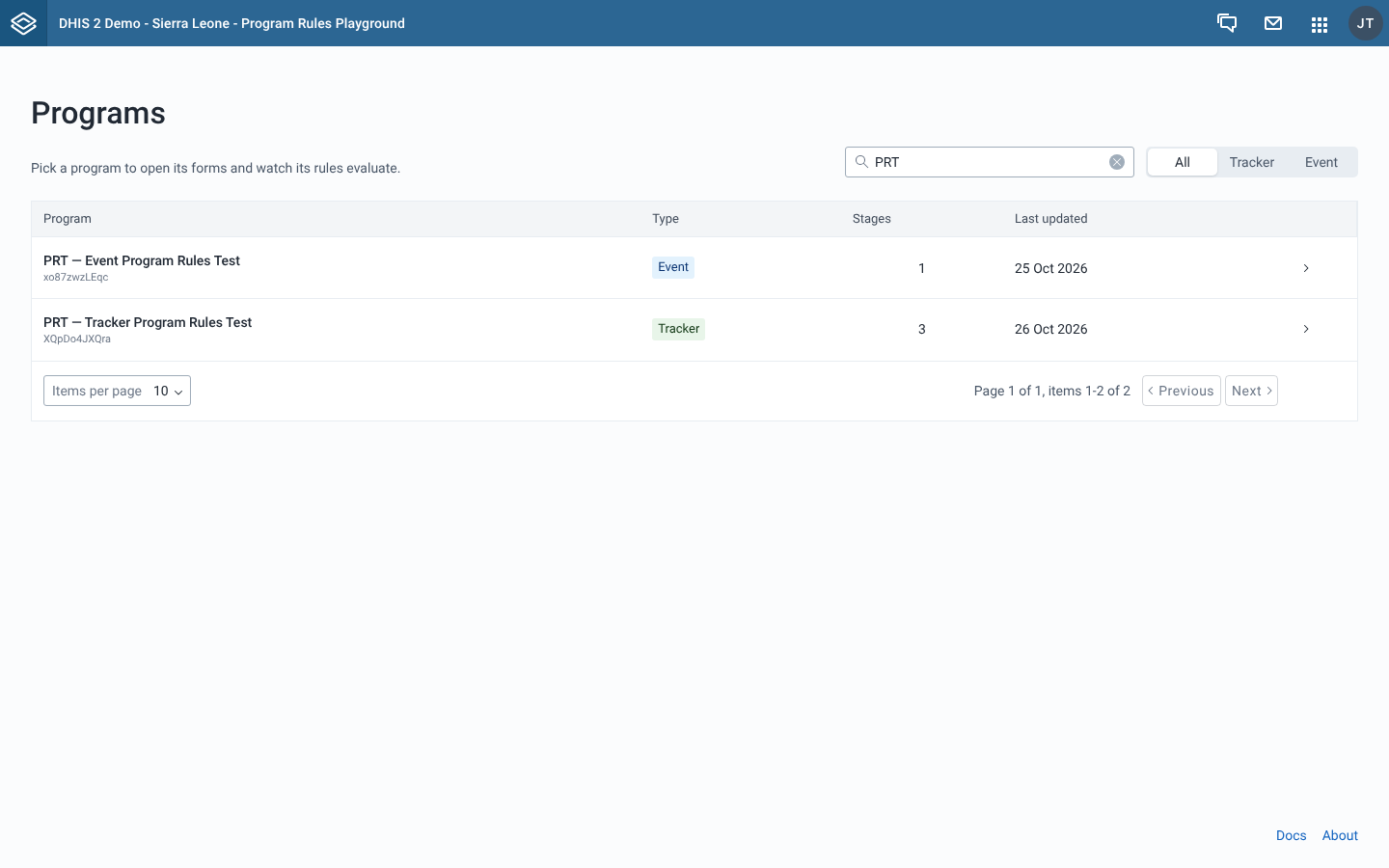
- Programs heading, with "Pick a program to open its forms and watch its rules evaluate." under it.
- Search field, "Search by name, code, or ID". It filters the list as you type. See Find and open a program.
- Type switch, All, Tracker or Event.
- Program table, with the columns Program (name and ID), Type, Stages and Last updated. Select a row to open the program in the playground.
- Page controls under the table, to move between pages and change how many programs show per page. The default is 10.
- Docs and About links at the bottom right. Docs opens this site in a new tab. About opens the About page.
Playground
The screen for one program. It has the context bar at the top, then the form area. In a tracker program, the Enrollment rail sits on the left of the form.
Context bar

- Programs back link. It returns to the program list, with your search, type and page as you left them. See Find and open a program.
- Program name, with the program type (Tracker or Event program) and the number of rules under it.
- Organisation unit, with Select (or Change once one is set). It opens the Select organisation unit dialog. Only Verify with server needs an organisation unit. See Set the organisation unit and date.
- Event date in an event program, or Enrollment date in a tracker program. It defaults to today. See Set the organisation unit and date.
- Reset playground. It clears the organisation unit, sets the date back to today and empties every form. See Start over.
Form
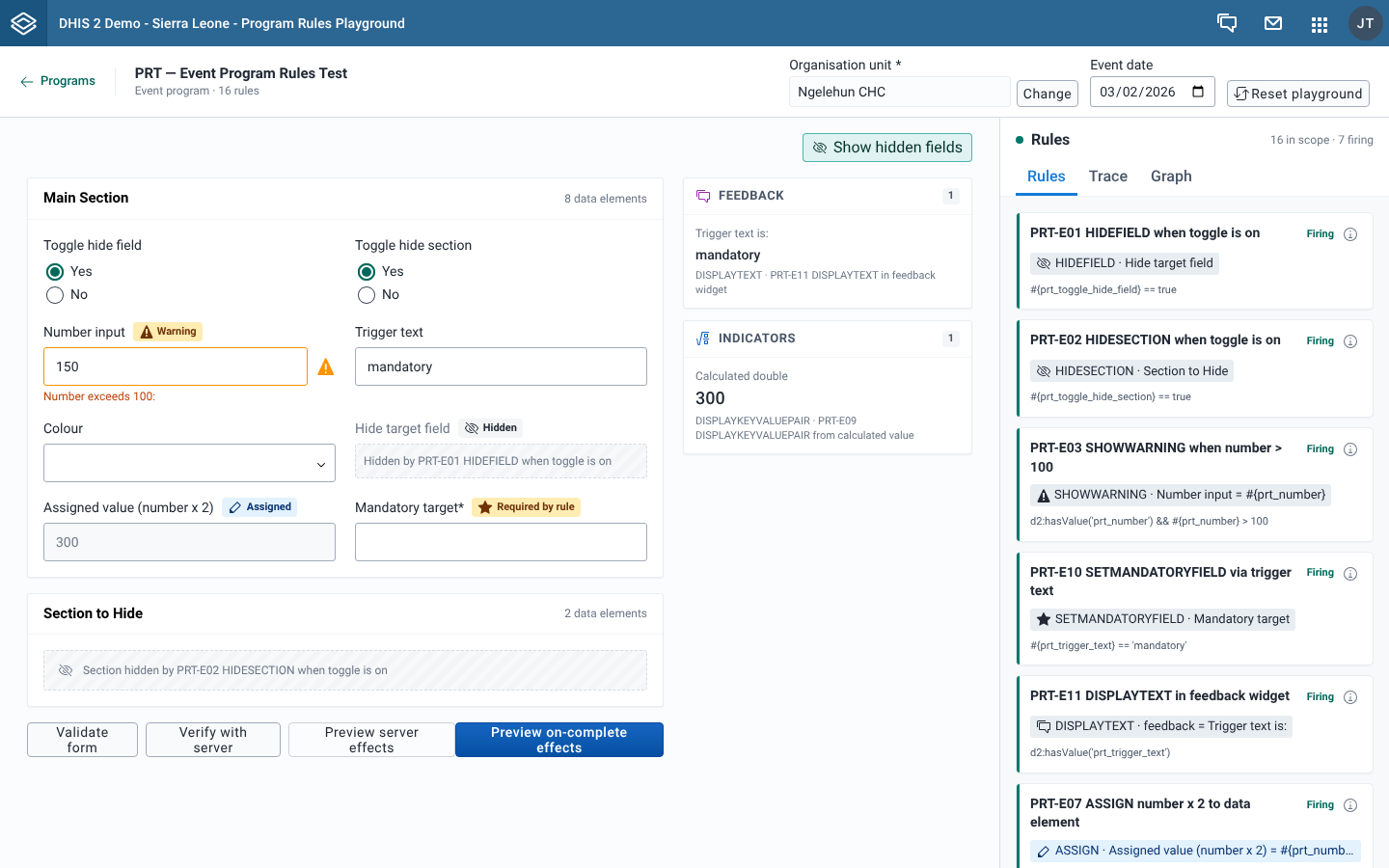
- Show hidden fields, at the top right of the fields. When it is on (teal), a placeholder marks each field or section a rule hid. When it is off (grey), they are left out. See Read field badges and hidden-field placeholders.
- Section cards, each with the section name and the number of fields in it.
- Effect badges next to field labels, such as Hidden, Warning, Assigned and Required by rule. See the Effect badges legend.
- Hidden-field placeholder, "Hidden by" followed by the rule name, or "Section hidden by" for a whole section.
- Feedback and Indicators cards, to the right of the fields. See Read the Feedback and Indicators sidebar.
- Form buttons, under the fields:
- Validate form. See Validate a form.
- Verify with server. See Check rules against the server.
- Preview server effects. See Preview server effects.
- Preview on-complete effects, on event forms only. See Test on-complete rules.
- Rules panel, docked on the right. See the next section.
The Enrollment form of a tracker program has Validate form, Verify with server and Preview server effects only.
Rules panel
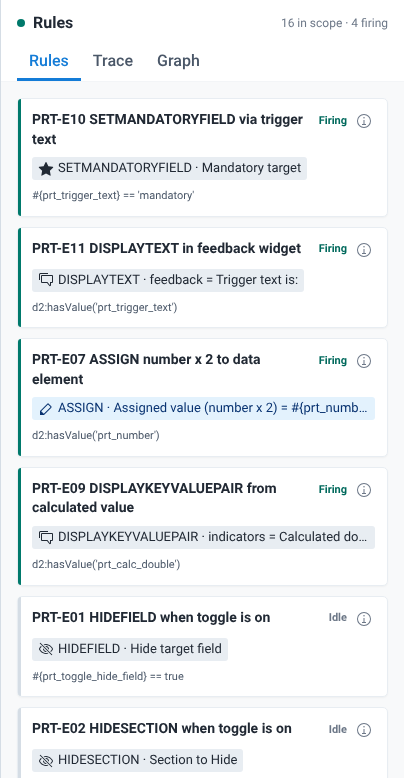
- Rules title, with the counter "n in scope · n firing".
- In scope / All switch. It only shows in tracker programs. In an event program every rule is in scope.
- Tabs: Rules, Trace and Graph.
- Rule cards, firing rules first. Each card shows:
- the rule name and its status, Firing, Idle or Out of scope
- an info button, Program rule details, that opens the rule's details. See Open and edit a rule.
- one effect badge per action, such as "ASSIGN · Assigned value (number x 2)"
- the rule condition
- for an out-of-scope rule, where it applies: "Applies to enrollment" or "Applies to" followed by a stage name
Selecting a card highlights the rule and switches to the Graph tab. See Find out why a rule did or didn't fire for the Rules and Trace tabs, and Map rule dependencies for the Graph tab.
Enrollment rail
In a tracker program, the Enrollment rail on the left lists the forms of one enrollment.
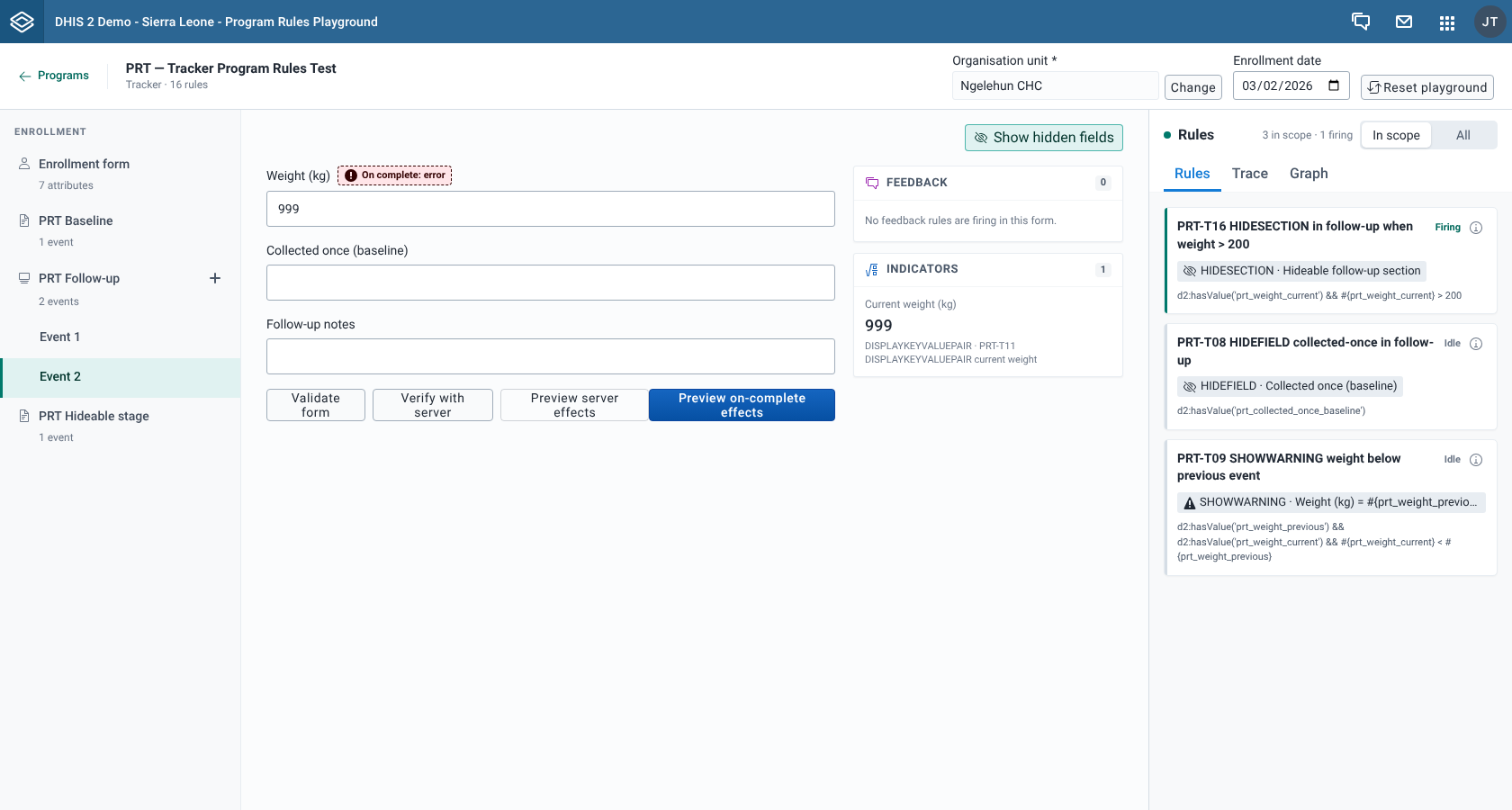
- Enrollment heading.
- Enrollment form, with the number of attributes. It is selected when you open the program.
- One row per program stage. A stage that is not repeatable shows "1 event".
- A repeatable stage shows "No events yet", "1 event" or "n events", and an Add event button.
- The events you added, as "Event 1", "Event 2" and so on, under their stage.
Switching rows keeps what you entered in every form. See Work with repeatable stages.
Dialogs
| Dialog | Opened from | See |
|---|---|---|
| Select organisation unit | Select or Change in the context bar | Set the organisation unit and date |
| Program rule details | Program rule details on a rule card, or a rule name in Server effects | Open and edit a rule |
| Server effects | Preview server effects or Preview on-complete effects | Preview server effects |
| Rule dependency graph | The full-screen button on the Graph tab | Map rule dependencies |
About page
Open it from About at the bottom of the program list. It shows the app Version, the Supported DHIS2 versions and a Resources list: Documentation, GitHub repository, Report a bug and dhis2-form-utils. Each resource opens in a new tab. ← Back to programs returns to the program list, without your earlier search.