Read field badges and hidden-field placeholders
Goal
See at a glance which rule is doing what to each field, and where a rule hid a field or section.
Before you start
- You have a program open in the playground, with a form showing. See Find and open a program.
Steps
- Enter values in the form. The rules evaluate as you type and badges appear next to the labels of the fields they affect.
- Hover a badge to see which rule set it. The tooltip shows the action type and the rule name, for example "ASSIGN from rule: PRT-E07 ASSIGN number x 2 to data element".
- Look for dashed boxes in the form. Each one marks a field or section that a rule hid, and names the rule.
- To remove the placeholders and see the form as a data entry user would, select Show hidden fields at the top right of the form. Select it again to bring the placeholders back.
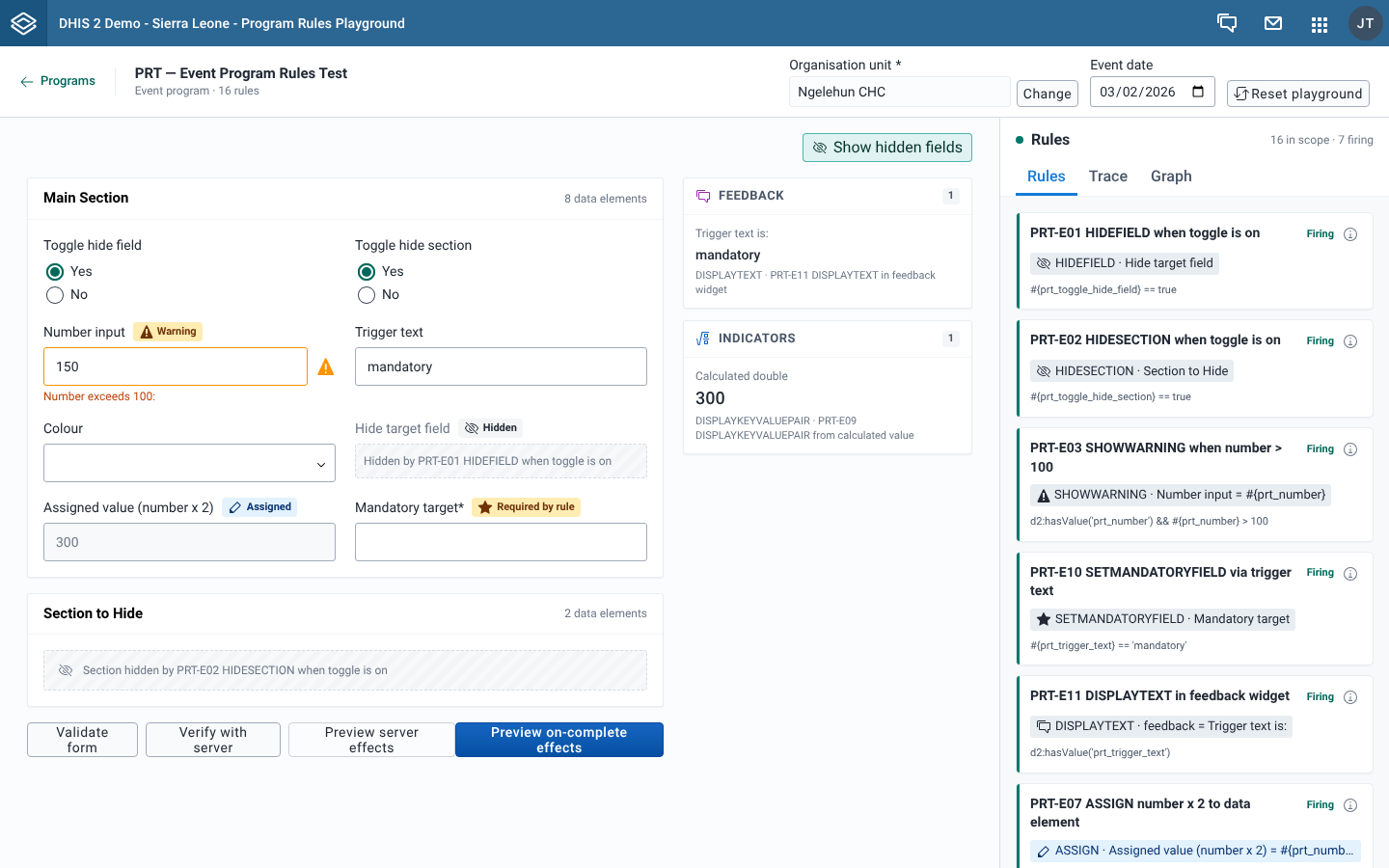
What you'll see
Effect badges
A field shows one badge, for the last rule action that affected it in the latest evaluation. If two rules act on the same field, the badge and its tooltip show the later one.
| Badge | Rule actions | What it means |
|---|---|---|
| Hidden | HIDEFIELD, HIDEOPTION, HIDEOPTIONGROUP | A rule hid the field, or some of its options. Hidden options are removed from the list. |
| Shown | SHOWFIELD, SHOWOPTION, SHOWOPTIONGROUP | A rule shows the field, or some of its options. |
| Assigned | ASSIGN | A rule assigned the value. The field can't be edited while the rule assigns it. |
| Required by rule | SETMANDATORYFIELD, UNSETMANDATORYFIELD | A rule changed whether the field is mandatory. |
| Warning | SHOWWARNING | A rule shows a warning. The warning text appears under the field. |
| Error | SHOWERROR | A rule shows an error. The error text appears under the field. |
| On complete: warning | WARNINGONCOMPLETE | A rule warns when the form is completed. The badge has a dashed border. |
| On complete: error | ERRORONCOMPLETE | A rule blocks completion. The badge has a dashed border. |
The on-complete badges appear as soon as the rule fires, not only when you complete the form. When you use Preview on-complete effects, the message also appears under the field as "On complete:" followed by the message. See Test on-complete rules.
The warning and error text under a field is the rule action's static text. The evaluated data of the action is not added to it.
For the colour and icon of each badge, see the Effect badges legend.
The asterisk on required fields
A field label ends with an asterisk (*) when the field is mandatory, whether the program metadata makes it compulsory or a rule makes it mandatory. The asterisk looks the same in both cases. When a rule made the field mandatory, the field also has the Required by rule badge.
Hidden-field placeholders
When Show hidden fields is on, which is the default, the form keeps a placeholder where a rule hid something:
- A hidden field keeps its label, greyed out, with the Hidden badge. In place of the input, a dashed box reads "Hidden by" followed by the rule name.
- A hidden section keeps its header. The body reads "Section hidden by" followed by the rule name. Hidden sections have no badge.
When Show hidden fields is off, rule-hidden fields and sections are removed from the form, as they would be in data entry. The button label stays the same. It is highlighted when on and grey when off.
The setting applies to the form you have open. It is not remembered, and it turns on again when you reload the page or use Reset playground.
Values in hidden fields are not sent by Verify with server.