Open and edit a rule
Goal
Read the whole of a program rule, including its condition in plain language and every action, without leaving the playground. When you find a problem, open the rule in the DHIS2 app where you edit rules.
Before you start
- You have a program open in the playground. See Find and open a program.
- To edit the rule, you need access to the rule editor app and the authorities to change program rules. See Who can edit below.
Steps
- In the rules panel, select the Rules tab and find the rule.
- Select the Program rule details button (the info icon) on the rule card. You can also select a rule name in the Server effects dialog. See Preview server effects.
- Read the dialog. Its sections are described below.
- To change the rule, select Edit in Maintenance app or Edit in Metadata Management app at the bottom of the dialog. The rule opens in a new tab.
- Select Close to go back to the form.
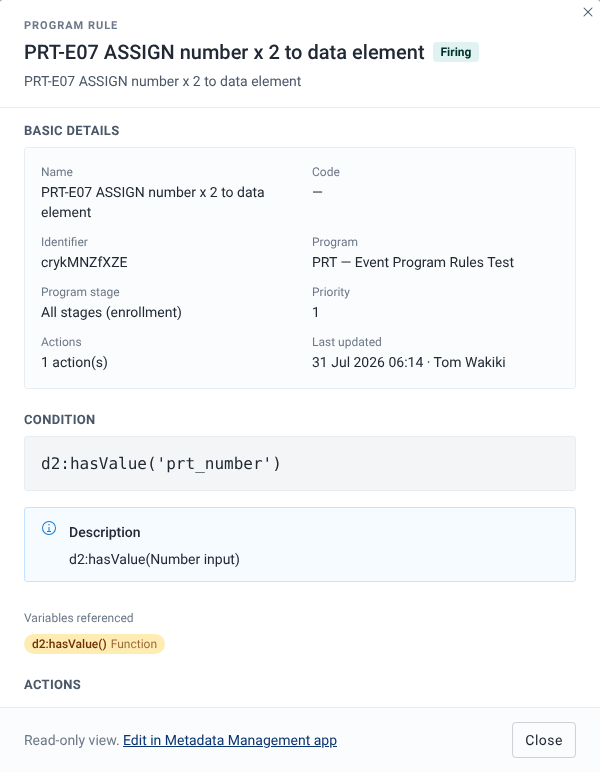
What you'll see
Header
The header shows "Program rule", the rule name, its status (Firing, Idle or Out of scope) and the rule description, if it has one. When you open the dialog from the Server effects dialog, the status is always Firing.
Basic details
| Item | What it shows |
|---|---|
| Name | The rule name. |
| Code | The rule code. |
| Identifier | The rule ID. |
| Program | The program the rule belongs to. |
| Program stage | The stage the rule is limited to. A rule with no stage shows "All stages (enrollment)", in event programs too. |
| Priority | The rule priority. |
| Actions | The number of actions, for example "2 action(s)". |
| Last updated | The date and time of the last change, and who made it. |
A value that isn't set shows a dash.
Condition
The Condition section shows the condition expression as it is written in the rule.
Under it, the app asks your DHIS2 server for a plain-language reading of the condition. While it waits, you see "Generating a plain-language description…". The reading then appears in a Description box. Fetching it saves nothing.
If the reading can't be loaded, a yellow warning starts with "Could not describe this expression:". It is followed by the reason the server gave, or by "Could not load a plain-language description for this condition. The raw expression is shown above." The condition expression is still shown.
Variables referenced lists each variable and function in the condition as a chip, with its kind:
#{...}: Data elementA{...}: Tracked entity attributeV{...}: Environment variabled2:functions: Function
Program rule variables are shown by name. When you open the dialog from the Server effects dialog, the chips show the raw expressions.
Actions
One card per action, numbered Action 1, Action 2 and so on, with the action type. Each card can show:
- The target, with its kind and ID, for example a Data element, Tracked entity attribute, Program stage section, Program stage, Option or Option group.
- Data (expression): the expression the action evaluates.
- Content (static text): the static text, for display actions.
- Location: where a display action shows its text.
If the rule can't be loaded, the dialog shows "Could not load this rule:" followed by the reason.
The edit link
The dialog is a read-only view. The link at the bottom opens the rule in the app that edits program rules on your DHIS2 version.
On DHIS2 2.40 to 2.42, the link reads Edit in Maintenance app and opens the rule in the Maintenance app. On DHIS2 2.43, it reads Edit in Metadata Management app and opens the rule in Metadata Management.
The app picks the link from the version your DHIS2 server reports. If it can't tell the version, it uses the Maintenance app link.
After you save a change in the other app, reload the playground page so it loads the changed rule.
Who can edit
Anyone who can open the program can open the details dialog. No extra authority is needed.
To use the edit link, you need:
| DHIS2 version | To open the editor app | To edit the rule |
|---|---|---|
| 2.40 to 2.42 | M_dhis-web-maintenance | F_PROGRAM_RULE_ADD, and F_PROGRAM_RULE_DELETE to delete rules, plus metadata write sharing on the program |
| 2.43 | M_dhis-web-metadata-management | The same as for 2.40 to 2.42 |
Without access to the editor app, the link opens a DHIS2 page that says "Unable to find an app for this URL." These authorities were checked on DHIS2 2.43 only. See Requirements and user authorities.