Tutorial: debug your first event program rule
In this tutorial you open an event program, change a value, and follow the result back to the program rule that caused it. Then you make an idle rule fire and see why it didn't fire before.
What you will learn
- How to open a program and set the organisation unit and date.
- How to read an effect badge on a field.
- How to find the rule behind a badge on the Rules tab, and follow each evaluation on the Trace tab.
Before you start
- The app is installed and you can open it. See Install and Requirements and user authorities.
- This tutorial uses the PRT event program from the Program Rules Playground test metadata. Its name starts with "PRT" and ends with "Event Program Rules Test". If your server has an equivalent program, you can follow along with it.
TODO(verify): where to download the PRT test metadata package. - The program is assigned to the organisation unit Ngelehun CHC (Sierra Leone, Bo, Badjia). On your server, use any organisation unit assigned to the program.
Step 1: open the program
- Open Program Rules Playground from the DHIS2 apps menu. The Programs list opens.
- In the search field, type
PRT. - Select Event to show event programs only.
- Select the PRT event program row.
The playground opens. The context bar at the top shows the program name, "Event program · 16 rules", the Organisation unit and Event date fields, and Reset playground. Below it is the event form, with the Feedback and Indicators cards and the rules panel on the right.
Step 2: set the organisation unit and date
- Next to Organisation unit, select Select. The Select organisation unit dialog opens.
- Expand Sierra Leone, Bo and Badjia, then select Ngelehun CHC. Bo and Badjia are greyed out because they are not assigned to the program, so you can't select them.
- Select Select Ngelehun CHC.
- Leave Event date on today's date.
Only Verify with server needs an organisation unit. The rules in this tutorial run without one, but setting it now means you can check your results against the server later.
Step 3: change a value and read the badge
- In Main Section, type
21in Number input, then move to the next field. - Look at Assigned value (number x 2). It now shows
42, the field is disabled, and its label has an Assigned badge. - Point at the Assigned badge. The tooltip names the action type and the rule, "ASSIGN from rule: PRT-E07 ASSIGN number x 2 to data element".
- Look at the Indicators card. It lists Calculated double with the value
42, produced by the rule "PRT-E09 DISPLAYKEYVALUEPAIR from calculated value". - Type
mandatoryin Trigger text, then move to the next field. - Mandatory target now has an asterisk and a Required by rule badge. The Feedback card lists "Trigger text is:" with the value
mandatory.
Each badge shows the last effect a rule had on that field. See Effect badges legend for every badge.
Step 4: find the rule on the Rules tab
The rules panel opens on the Rules tab.
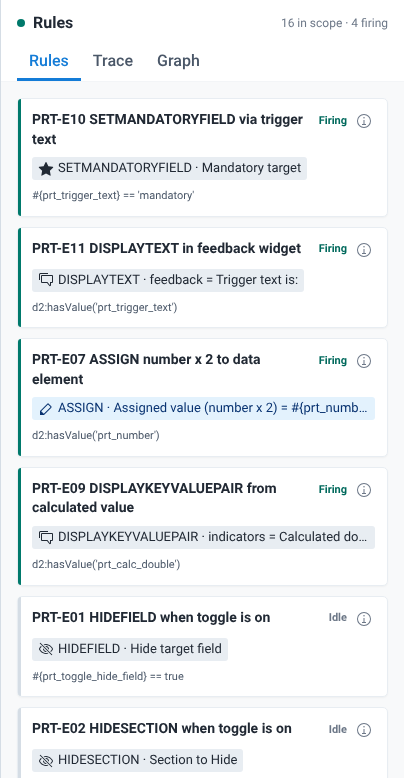
- Read the header. It shows "16 in scope" and the number of rules that are firing. In an event program every rule is in scope, so there is no In scope / All switch.
- Find the card for PRT-E07 ASSIGN number x 2 to data element. Its status is Firing, and firing rules are sorted to the top.
- Read the card. It shows the rule's action as "ASSIGN" with its target, Assigned value (number x 2), and the condition
d2:hasValue('prt_number'). The condition is true because Number input has a value. - Select Program rule details (the info button on the card) to see the full rule, including a plain-language reading of the condition. Select Close when you are done.
If you select the card itself, the panel highlights the rule and switches to the Graph tab. Select Rules to come back.
Step 5: follow the evaluations on the Trace tab
- Select the Trace tab.
- The newest evaluation is at the top and is expanded. Its Changed fields list shows the field you changed last, Trigger text. If your last change made a rule assign a new value, the newest entry is the evaluation that the assignment caused, and its Changed fields list shows the assigned field, such as Assigned value (number x 2). In that case, look one entry down.
- Under Rules fired, find the rules that produced effects in that evaluation, with each effect and its target.
- Look at the older entries below it. Each one shows how long ago it ran and a tag with the number of rules. Select the arrow next to an entry (its label is "Expand evaluation details") to expand it, and find the one that lists Number input under Changed fields.
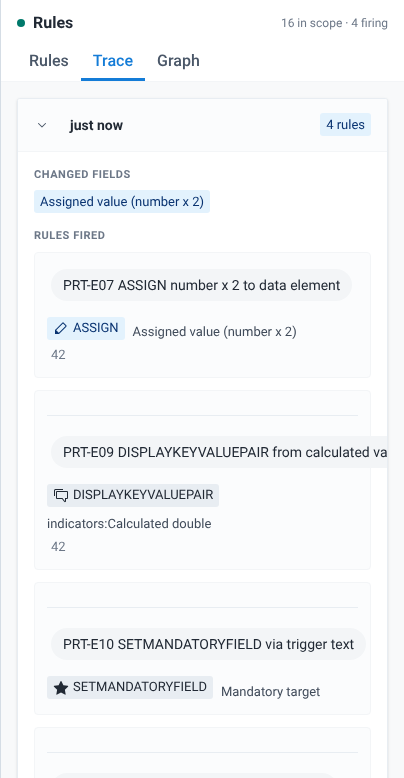
In the screenshot, the newest entry lists Assigned value (number x 2) under Changed fields. That is the evaluation caused by PRT-E07 writing its value into the field, right after a change to Number input.
The oldest entry, at the bottom and tagged Initial, is the evaluation when the form loaded, before you changed anything. The tag marks any evaluation with no changed field.
Step 6: make an idle rule fire
Now look at a rule that did not fire.
- Select the Rules tab. Find PRT-E03 SHOWWARNING when number > 100. Its status is Idle.
- Read its condition:
d2:hasValue('prt_number') && #{prt_number} > 100. Number input is21, which is not more than 100, so the condition is false and the rule does nothing. - Change Number input to
150and move to the next field. - Number input now has a Warning badge and the warning text "Number exceeds 100:". Assigned value (number x 2) changes to
300. - On the Rules tab, PRT-E03 SHOWWARNING when number > 100 is now Firing and has moved to the top.
- On the Trace tab, the newest entry lists Assigned value (number x 2) under Changed fields. It is the evaluation caused by PRT-E07 assigning
300. The entry below it lists Number input under Changed fields and PRT-E03 under Rules fired.
The warning text shows only the action's text, not the value. The app does not add the value after "Number exceeds 100:".
What you did
You changed values in an event form and followed each effect back to its rule. The badge and its tooltip told you which rule changed the field. The Rules tab showed which rules are firing and their conditions, so you could see why PRT-E03 stayed idle at 21 and fired at 150. The Trace tab showed which field change triggered which rules.
Nothing you typed was saved. Select Reset playground to clear the form and start again.