Test on-complete rules
Goal
Test the rules that only matter when an event is completed: ERRORONCOMPLETE, WARNINGONCOMPLETE and required fields. Preview on-complete effects runs a completion pass, the same check a data entry app runs before it lets you complete an event. It then shows the server effects for a completed event. Nothing is completed or saved.
Before you start
- Open an event program form or a stage form in a tracker program. The Enrollment form has no Preview on-complete effects button.
- You don't need an organisation unit, unless you also want to run Verify with server.
Steps
- Fill in the form. A field that a rule flags on completion already shows an On complete: error or On complete: warning badge.
- Select Preview on-complete effects.
- If the completion pass finds nothing, the Server effects dialog opens for a completed event. See Preview server effects.
- If it finds issues, read the banner above the form buttons, then choose:
- Back to editing to close the banner and go back to the form.
- Complete anyway to open the Server effects dialog for a completed event. This button only appears when nothing blocks completion.
- To check the completed event with the server too, close the Server effects dialog, then select Verify with server. After the dialog has been opened for a completed event, Verify with server sends the event as completed.
What you'll see
The completion pass
The app sets the form's status to completed, waits for the rules to evaluate again, and collects:
- Error: an ERRORONCOMPLETE action on a visible field, or one with no field.
- Required: a visible field that is required, by metadata or by a rule, and is empty.
- Warning: a WARNINGONCOMPLETE action.
The completion banner
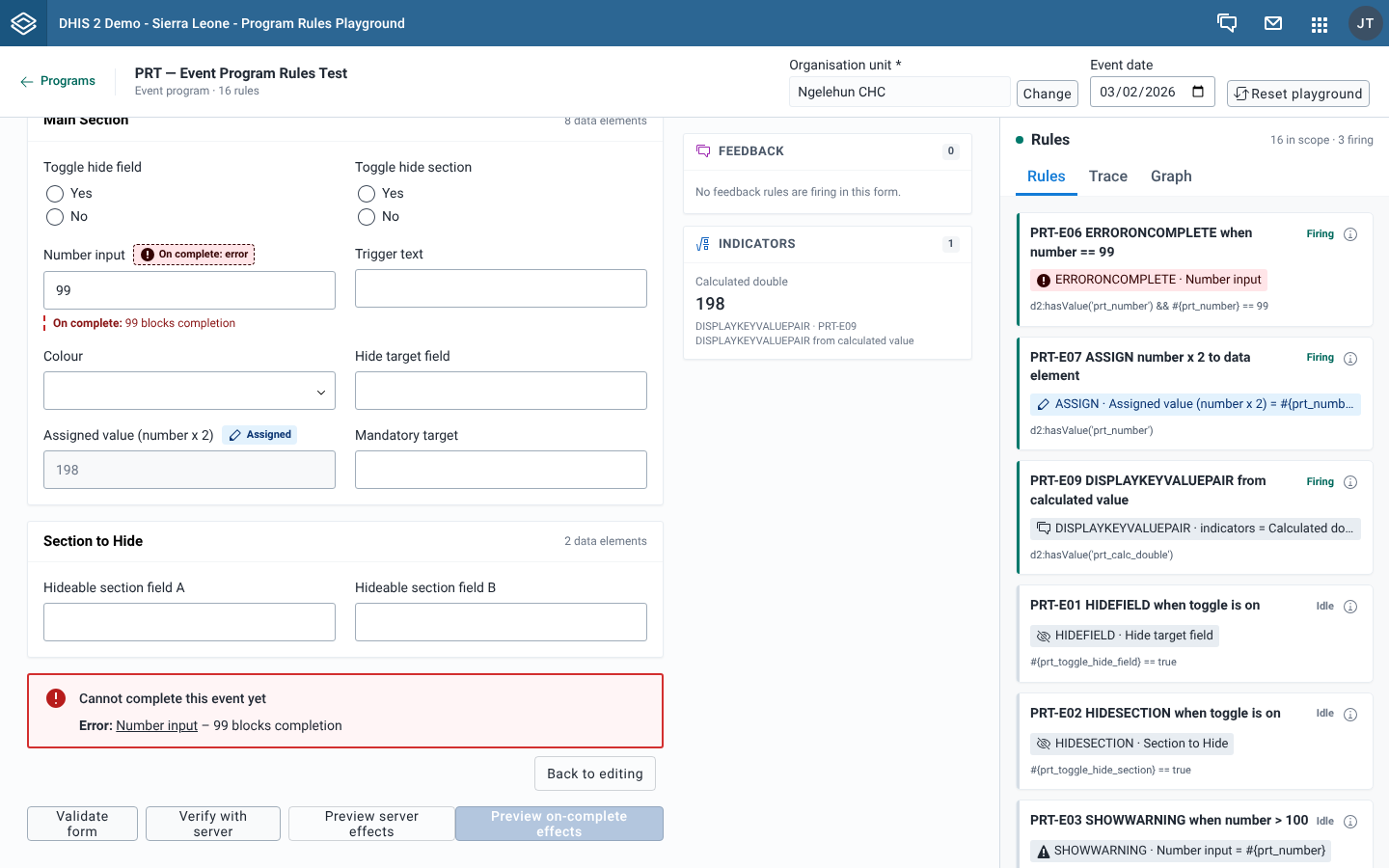
| Banner | When | Buttons |
|---|---|---|
| Cannot complete this event yet | At least one error or empty required field. | Back to editing |
| Review before completing | Only warnings. | Back to editing, Complete anyway |
Blocking issues are listed first. Each line reads "Kind: field – message", for example "Error: Number input – 99 blocks completion" or, after you type mandatory in Trigger text of the PRT event program, "Required: Mandatory target – This field is required". Select the field name to jump to the field. Keyboard focus moves to the banner when it appears.
The banner updates as you fix fields. When the last issue is gone, the banner disappears. While the banner is open, Preview on-complete effects is disabled.
What Complete anyway does
The playground saves nothing, so Complete anyway doesn't complete the event. It opens the Server effects dialog with the status set to completed, so you can see what the server would do on completion despite the warnings. When you close the dialog, the form goes back to its normal status and the banner closes.
After you have opened the dialog this way, Verify with server sends the event with status COMPLETED and a completion date, so the server runs its own on-complete checks. Select Preview server effects to switch the dry run back to ACTIVE.
On-complete messages on fields
While the form is in completed status, a field with an on-complete message also shows a dashed note under it, "On complete:" followed by the message.