Read the Feedback and Indicators sidebar
Goal
Check the text and values that your DISPLAYTEXT and DISPLAYKEYVALUEPAIR rules produce, and see which rule produced each one.
Before you start
- You have a program open in the playground. See Find and open a program.
- The program has rules with a DISPLAYTEXT or DISPLAYKEYVALUEPAIR action. Other action types don't show here.
Steps
- Find the sidebar to the right of the form fields. It has two cards, Feedback and Indicators. The sidebar stays in view as you scroll the form.
- Enter values that make your display rules fire. Items appear in the cards as soon as a rule fires, and disappear when it stops firing.
- Read the footer of each item to see which rule action and which rule produced it.
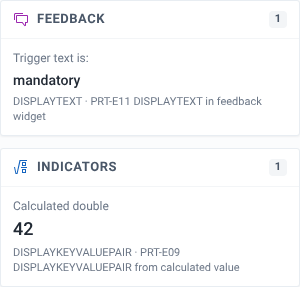
What you'll see
Each card has a count of its items in the header.
Where an item goes depends on the location set on the rule action:
- Indicators shows items from actions whose location is
indicators, the indicators widget. - Feedback shows items from actions with any other location, such as
feedback, the feedback widget.
Each item has three lines:
- The action's static text, in small grey type. For example, "Calculated double".
- The evaluated value of the action's data expression, in larger type. For example, "42". Indicator values use a larger, number-friendly font.
- The action type and the rule name, for example "DISPLAYKEYVALUEPAIR · PRT-E09 DISPLAYKEYVALUEPAIR from calculated value".
The rule name in the footer is plain text. Items are not links. To look at the rule, find it by name in the Rules tab of the rules panel. See Find out why a rule did or didn't fire.
Two actions with the same location and the same static text show as a single item.
When nothing is firing, the cards read "No feedback rules are firing in this form." and "No indicator rules are firing in this form."
In a tracker program, each form has its own sidebar. The Enrollment form and each stage or event form only show the items produced in that form.