Tutorial: tracker rules across enrollment and events
In a tracker program, rules can read values from more than one form. In this tutorial you enter an attribute in the enrollment form and watch a rule in a stage form react to it. Then you add two events to a repeatable stage and test an on-complete rule in one of them.
What you will learn
- How the Enrollment rail switches between the enrollment form and the stage forms without losing your input.
- How a value in the Enrollment form drives a rule in a stage form, and why the Rules tab marks that rule Out of scope there.
- How to add events to a repeatable stage and test each event on its own.
Before you start
- Do Tutorial: debug your first event program rule first. This tutorial assumes you know the badges and the Rules and Trace tabs.
- This tutorial uses the PRT tracker program from the Program Rules Playground test metadata. Its name starts with "PRT" and ends with "Tracker Program Rules Test". If your server has an equivalent program, you can follow along with it.
TODO(verify): where to download the PRT test metadata package. - The program is assigned to the organisation unit Ngelehun CHC (Sierra Leone, Bo, Badjia). On your server, use any organisation unit assigned to the program.
TODO(verify): the steps on this page come from the app's code and the program's metadata. Steps 2, 3 and 5 match the screenshots, which were captured in a browser. Steps 4 and 6 have not been run in a browser yet.
Step 1: open the program and set the organisation unit
- Open Program Rules Playground. In the Programs list, select Tracker to show tracker programs only.
- Select the PRT tracker program row. You can also type
PRTin the search field to narrow the list. - Next to Organisation unit, select Select, expand Sierra Leone, Bo and Badjia, select Ngelehun CHC, then select Select Ngelehun CHC.
- Leave Enrollment date on today's date.
The context bar shows "Tracker · 16 rules". On the left is the Enrollment rail. Its first row, Enrollment form, is selected, and the stages are listed below it: PRT Baseline, PRT Follow-up and PRT Hideable stage.
Step 2: fill in the enrollment form
- In the PRT Identification section, type
Aminain First name. - Type
30in Age (years), then move to the next field.
What you see:
- In PRT Rule targets, Risk score (assign target) shows
3, is disabled and has an Assigned badge. The rule "PRT-T04 ASSIGN risk score (TEA) from age" divides the age by 10. - Occupation (mandatory target) has an asterisk and a Required by rule badge, from "PRT-T05 SETMANDATORYFIELD (TEA) when adult", because the age is 18 or more.
- The Feedback card lists "Registering:" with the value
Amina, from "PRT-T06 DISPLAYTEXT enrollment feedback".
Step 3: watch a stage rule react to the enrollment form
The rule "PRT-T10 SHOWWARNING event value vs TEA cross-check" compares a value in the PRT Baseline stage with the age you entered in the enrollment form. Its condition is d2:hasValue('prt_age_at_visit') && d2:hasValue('prt_age') && #{prt_age_at_visit} < #{prt_age}.
- In the rail, select PRT Baseline.
- Type
25in Age at visit, then move to the next field.
Age at visit now has a Warning badge and the warning text "Age at visit is lower than the registered age:".
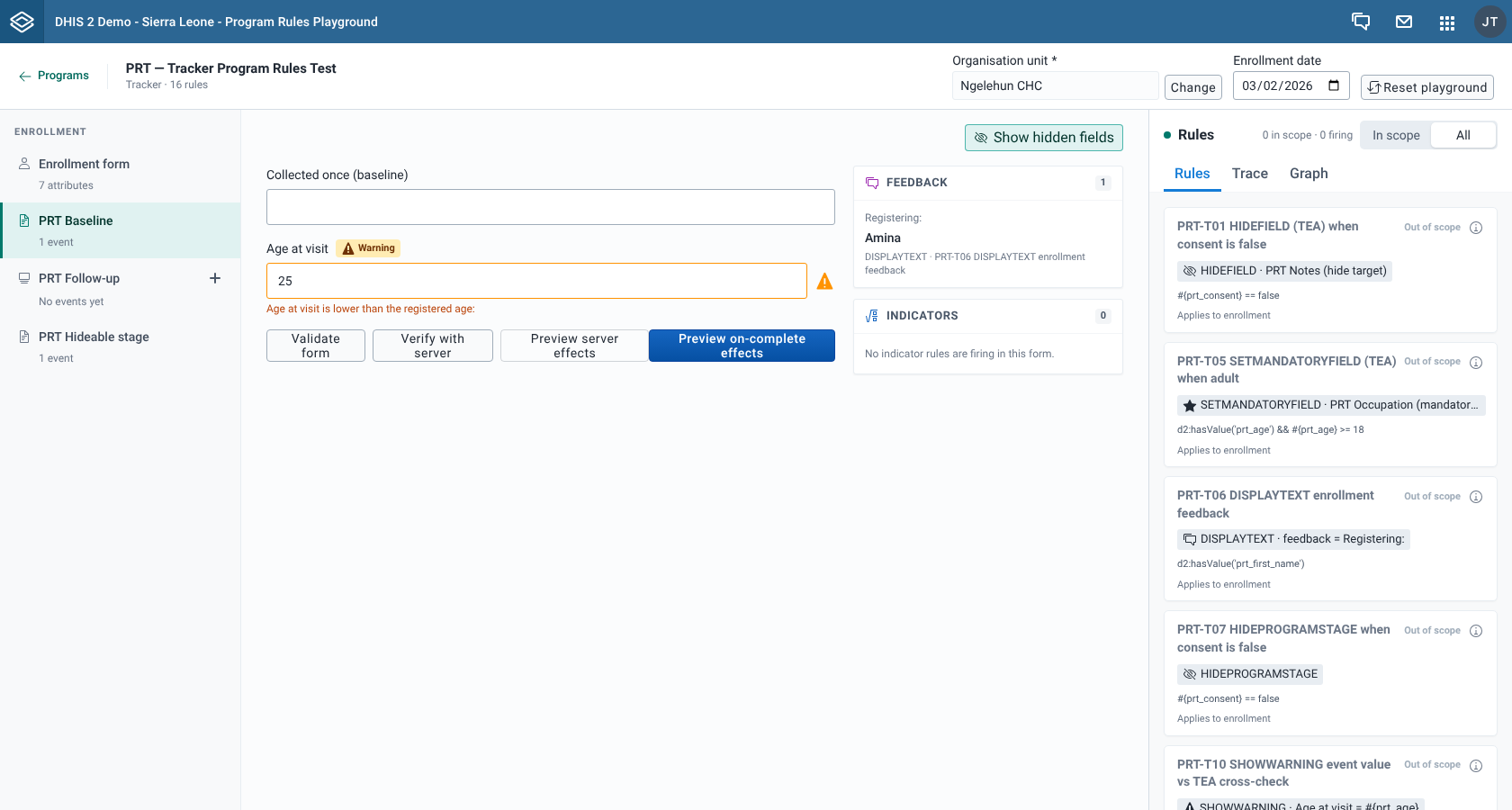
This works because each form shares its values with the others as you type. Stage forms see the attributes from the Enrollment form, and the Enrollment form sees the values in every event.
Now try it the other way round:
- In the rail, select Enrollment form and change Age (years) to
20. - Select PRT Baseline again. The warning is gone, because 25 is not lower than 20. The stage form re-evaluates its rules whenever an enrollment value changes, even if you don't touch the stage form.
Switching rows in the rail never loses your input. Every form stays loaded in the background.
Step 4: find the rule in the stage form's Rules tab
Each form has its own rules panel. Look at the one next to the PRT Baseline form.
- Change Age (years) in the Enrollment form back to
30, then select PRT Baseline again. The warning is back. - In the rules panel, look at the header. In a tracker program it has an In scope / All switch, and In scope is selected.
- Under In scope, the Rules tab lists only the rules that belong to the PRT Baseline stage. This program has none, so the tab reads "No program rules match this view."
- Select All. Find PRT-T10 SHOWWARNING event value vs TEA cross-check. Its status is Out of scope and its caption reads "Applies to enrollment".
- Select the Trace tab. The newest entry is tagged Initial, because the stage form re-evaluated its rules when you changed Age (years) in the Enrollment form. It reads "effects on load" with the number of effects, and lists PRT-T10. Further down, the entry from step 3 lists Age at visit under Changed fields and PRT-T10 under Rules fired.
The rule fired in this form, but the Rules tab marks it Out of scope. The app treats a rule with no program stage as belonging to the enrollment form, and a rule with a program stage as belonging to that stage only. The header's firing count only counts rules in scope, so it does not include PRT-T10 here. The Trace tab shows every rule that fired in the form, in scope or not.
Step 5: add two events to a repeatable stage
PRT Follow-up is a repeatable stage. Its rail row reads "No events yet".
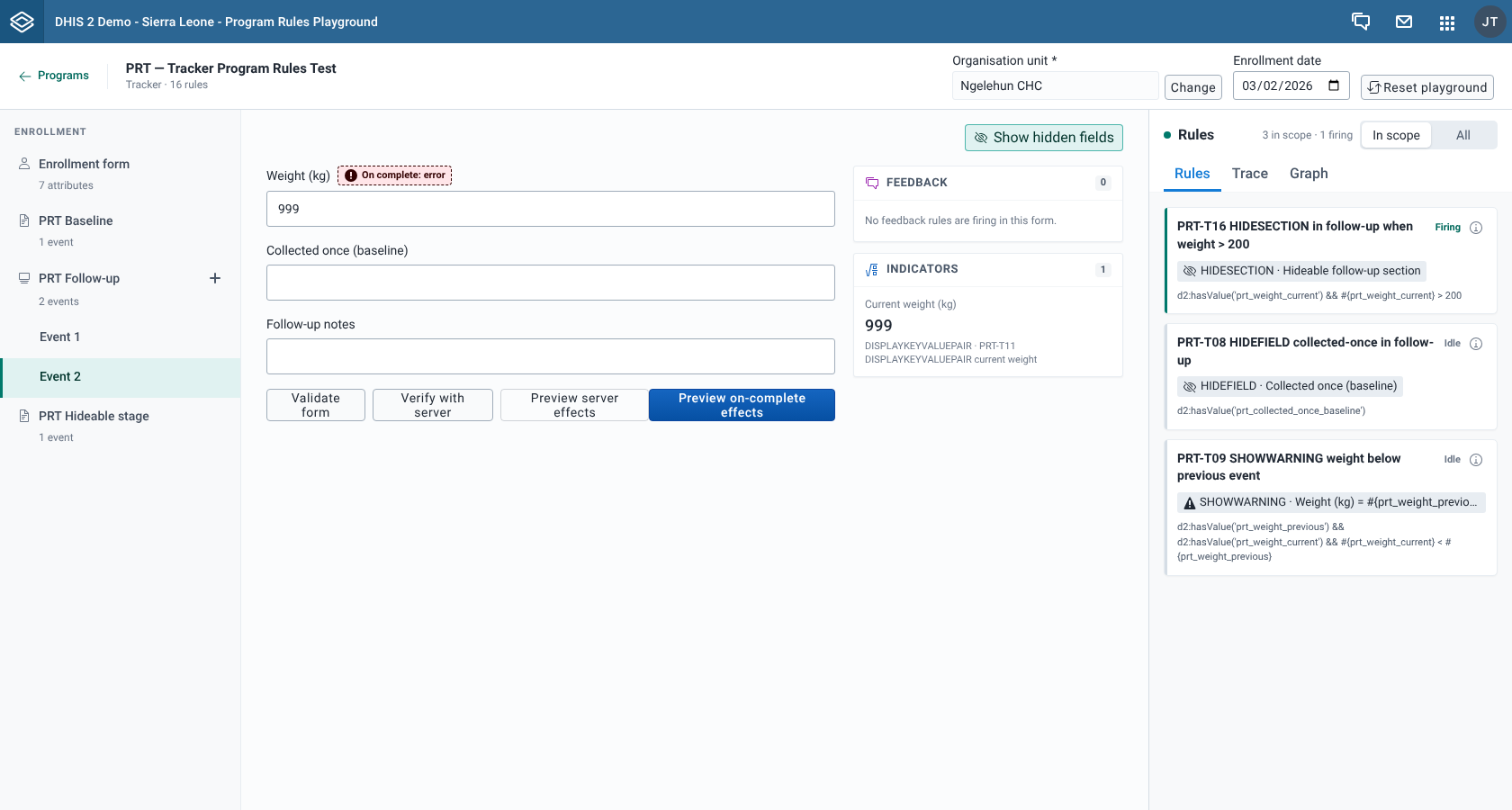
- On the PRT Follow-up row, select Add event (the plus button). A row Event 1 appears under the stage and opens. The stage row now reads "1 event".
- Type
70in Weight (kg), then move to the next field. The Indicators card lists Current weight (kg) with the value70. - Select Add event again. Event 2 appears and opens, and the stage row reads "2 events".
- Type
999in Weight (kg), then move to the next field.
In Event 2:
- Weight (kg) has an On complete: error badge, from "PRT-T14 ERRORONCOMPLETE when weight == 999".
- The Indicators card lists Current weight (kg) with the value
999.
Select Event 1 in the rail. Weight (kg) still shows 70. You may also see a warning from "PRT-T09 SHOWWARNING weight below previous event" on Event 1, because both events have the same date and the rule can treat Event 2 as the previous event. See the note in step 6. Each event has its own form, its own Feedback and Indicators cards and its own rules panel.
You can't remove an event once you add it. To start over, select Reset playground, which clears all forms.
Step 6: test the on-complete rule in one event
- Select Event 2 in the rail.
- Select Preview on-complete effects.
- A banner titled "Cannot complete this event yet" appears above the buttons. It lists "Error: Weight (kg) – 999 is a test sentinel and blocks completion".
- Select Back to editing.
Change Weight (kg) to 998 and try again. The banner is now titled "Review before completing", from "PRT-T15 WARNINGONCOMPLETE when weight == 998", and offers Complete anyway as well as Back to editing.
Every event you add gets today's date, and stage forms have no event date field. Rules that compare an event with the previous one, such as "PRT-T09 SHOWWARNING weight below previous event", depend on the order of event dates, so their results are not reliable when all events have the same date.
What you did
You entered attributes in the Enrollment form and saw a rule in the PRT Baseline stage form react to them, because the forms share their values. You saw that the Rules tab marks a rule without a program stage as Out of scope in a stage form, even when it fires there, and that the Trace tab shows it anyway. Then you added two events to a repeatable stage, saw that each keeps its own values, and tested an on-complete rule in one of them.
Nothing you typed was saved.