Find and open a program
Goal
Find the program whose rules you want to test and open it in the playground. When you go back, the list is where you left it.
Before you start
- You can open Program Rules Playground on your DHIS2 instance.
- You have metadata read access to the program. Programs you can't read are not listed. See Requirements and user authorities.
Steps
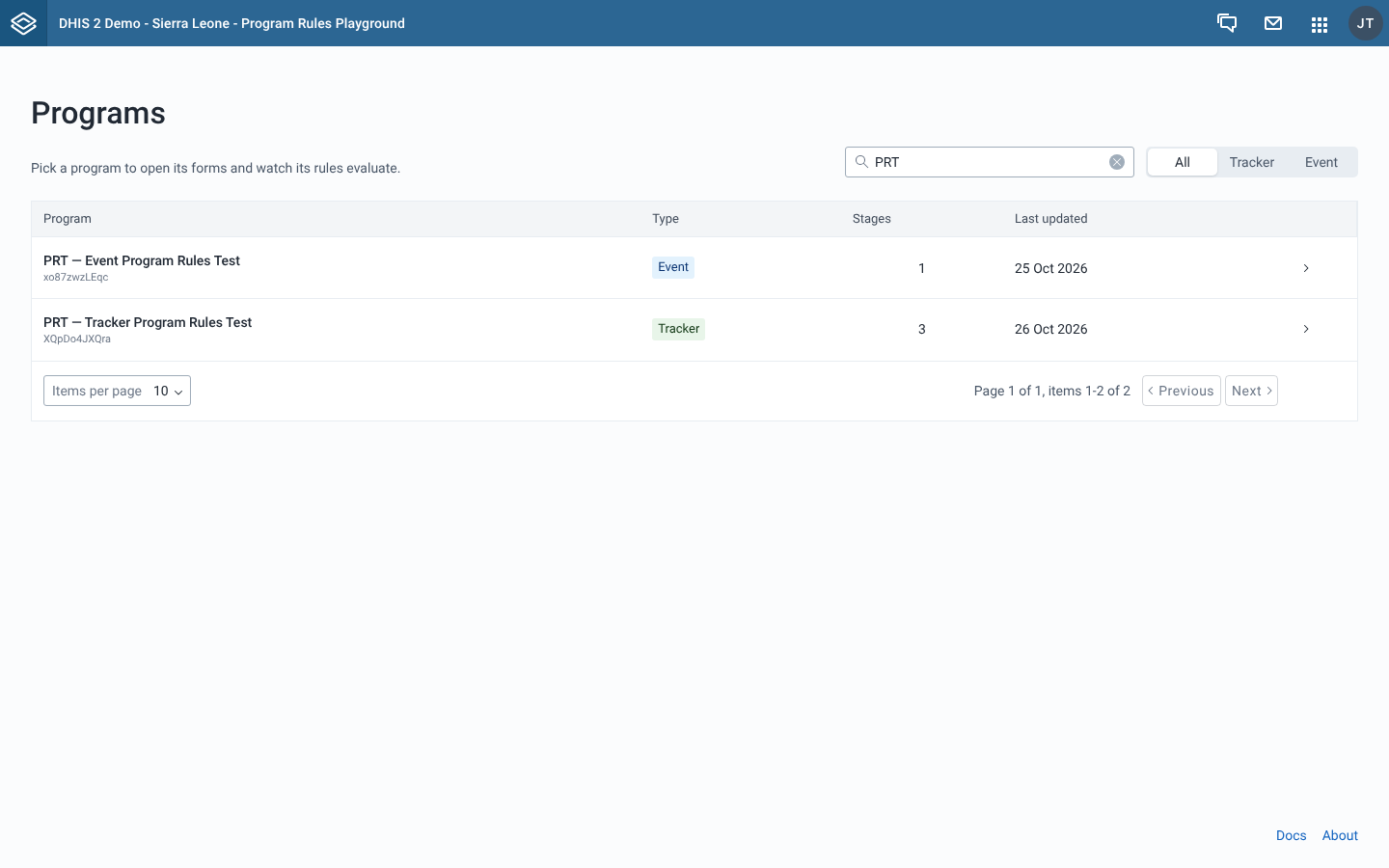
- Open the app. The Programs page lists every program you can read, sorted by name.
- To search, type in the field with the placeholder "Search by name, code, or ID". The list updates shortly after you stop typing. The search matches the program's name, code or ID. To clear the search, use the clear button in the field.
- To show one kind of program, select All, Tracker or Event above the list. Tracker shows programs with enrollments, Event shows event programs.
- If the list has more than one page, use the pagination controls under the table to move between pages or change how many rows a page shows. A page shows 10 programs by default. Changing the search, the filter or the page size takes you back to page 1.
- Select a program row to open it. You can also move to a row with the keyboard and press Enter or Space.
- To come back to the list, select Programs at the top left of the playground. The list opens with the same search, filter, page and page size you had.
What you'll see
The table has these columns:
- Program: the program name, with its ID under it.
- Type: a Tracker or Event tag.
- Stages: the number of program stages.
- Last updated: the date the program was last changed.
If nothing matches, the list shows "No programs found. Try adjusting your search or filter." If the programs can't be loaded, you see an Error notice with "Error loading programs".
Your search, filter, page and page size are kept in the page address, so you can bookmark a filtered list or share it with a colleague who has access to the same programs.
The footer of the program list has two links:
- Docs opens this documentation in a new tab.
- About opens the About page, with the app version, the supported DHIS2 versions and links to the source code and the bug tracker.
The ← Back to programs link on the About page always opens the full list. It does not restore your search, filter or page. Only the Programs link in the playground does that.
If you open a playground link directly, for example from a bookmark, Programs takes you to the full list.